
Getting Started with the Garage Module Help Page

Getting Started with the Garage Module: An Introduction

Learn more about Getting Started with the Garage Module

In this guide, we will focus on Getting Started with the Garage Module, ensuring that all users can navigate it effectively.

Setup

 Feature setup is essential for setting the company’s regulations, arrangements, and control policy

Before recording any operations, the user must set up the company file.

If these settings are not made, the customer may find that the results do not comply with its policies and need to re-enter its operations.

Therefore, settings are vital when using the software. It’s very important to understand this. The setup unit is the most important step and must be done before using the software.

Getting Started with the Garage Module is crucial for maximizing efficiency in your operations.

By following the steps outlined in Getting Started with the Garage Module, you can ensure a smooth transition to utilizing the software.

For those new to the system, Getting Started with the Garage Module will help you familiarize yourself with its features.

Understanding Getting Started with the Garage Module is essential for all users who want to optimize their workflow.

Getting Started with the Garage Module is where your journey begins, ensuring you set the right foundation for success.

Take the time to go through Getting Started with the Garage Module to avoid common pitfalls in the setup process.

Those interested in seamless integration should focus on Getting Started with the Garage Module.

Getting Started with the Garage Module provides the necessary tools to ensure all features are utilized correctly.

Engaging with Getting Started with the Garage Module can significantly improve your management efficiency.

Reviewing Getting Started with the Garage Module will enhance your understanding of how to navigate the software.

After completing Getting Started with the Garage Module, you will be well-prepared to handle your tasks.

The insights gained from Getting Started with the Garage Module will prove invaluable as you manage your operations.

To ensure long-term success, prioritize understanding Getting Started with the Garage Module.

Getting Started with the Garage Module is not just a guide; it’s your roadmap to effective garage management.

Those who leverage Getting Started with the Garage Module will find their processes streamlined and efficient.

Make sure to dedicate time to Getting Started with the Garage Module to enhance your operational capacity.

Getting Started with the Garage Module is the key to unlocking the full potential of your garage management system.

By mastering Getting Started with the Garage Module, you will set the stage for ongoing success.

Ultimately, Getting Started with the Garage Module lays the groundwork for achieving your business goals.

STREAMLINE YOUR Garage PROCESS WITH HINAWI ERP

Settings are the most potent and vital Module. It allows you to set rules and requirements according to your Company policy. Our software is customizable for any business as per their requirement. We have flexible settings for each Module separately.

The software has a predefined Setup for each Module, like a regular practice of companies, allowing the User to use the program quickly. This Module has a checklist that gauges the control of users over function. If the Setup posting control window is open, the System will not allow the User to save the task unless they follow the procedure the admin sets.

The followings are an example of Garage Module Settings:-

  • Accounts receivables for credit Invoices.
  • Select the accounts for miscellaneous, sublet, and paint materials items.
  • Select the Account for discount items.
  • Select Cash Account for Cash invoice.
  • Predefine the printing form for the job card.
  • Predefine the printer name to print the job card.

Internal Control:-

The admin User can do internal control on users by the followings:-

  • User List access Setup - Located under File Menu >> Company Setup >> User List Access Setup.
  • Posting Control On Entries - Located Under File Menu >> Setup Posting Control. 

Reminders:-

Reminder for vehicle registration expiry Date.

Flexibility:-

All options above add more flexibility to Admin users to build the Company policy. The Admin User is the decision-maker to construct the Company needs without any additional charges from Hinawi. The integration modules save a lot of time.

Importing option helps users to start immediately using Hinawi Software. Users don’t need to wait months or years to run the software.

Chassis (Vehicle List): 

This feature allows the User to record all the vehicles the Garage business has worked with. The information recorded includes- Chassis No (VIN), Vehicle Type, Engine, Brand, etc. The System User can export to Excel or Print the List as a Report.

Job Cards:

The User of the System can create Job Cards. This feature could be users to record all the Data about the jobs performed in a garage upon a specific vehicle; it includes Data such as Basic details of the customers, Basic Vehicle Information (The System reads the Vehicle List and auto-fills the appropriate information for the fields of the basic Vehicle information in the Job Card.), It also includes the Service information that records the service the vehicle needs, such as the Job performed on the Vehicle, the Amount to be paid for that service, etc.

Assign Employees to Job Card: 

The users of the System can assign a Job to a specific Employee. This feature allows employees to be assigned to a specific job and shows the List of Unassigned Employees. It also includes Data about the Job performed by the Employee, Such as hours dedicated for that Job, and the status of the Job (This feature allows the User to track the job status. If the status is “Job Done,” then the specific job card will need to be approved so that the User can create a Cast/Credit Invoice.), etc. 

Approved Job Card:

The User has to approve the Job to enable Cash / Credit Invoice creation. The status of each service in the Job Card must be “Done.”

Cash/Credit Invoice: 

The System users can create Cash/Credit invoices for their customers.

Note:

All activities are reading from Setup.

Because the accountant needs to print all entries in the System, like Payments, collections, invoices, good receipts…etc., we created the option to let the User build his forms for printing without additional charges. Aside from this, we prepared pre-defined templates for all activities to save the User's time.

The admin User can do internal control on users by the followings:-

  • Posting controls are located under File Menu >>Setup Posting Control
  • The user Level of access is located under File Menu >> Company Setup >> User List Access Setup. Admin User can allow the User to create transactions but not edit. Or to approve but not pay. Or to read reports only….etc.
  • By default, the User can't change the transactions when approved.
    The User Activity Report has located the Menu, reads every change on each transaction, and lists with Date and time.
  • And Many more Internal Control Settings are available in the Software.

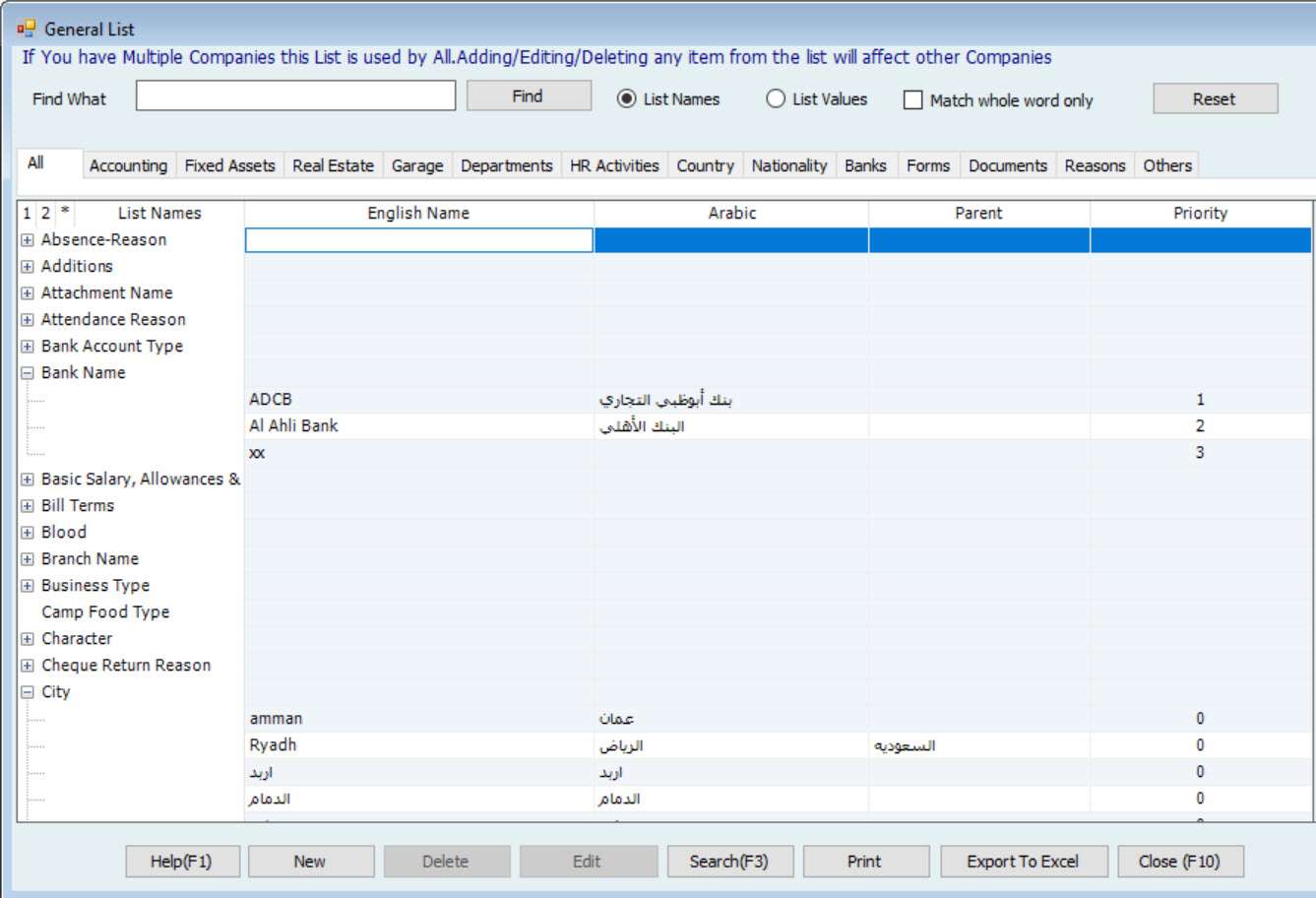
Please go to List Menu, then select General List.
Hinawi Software also provides users with the capability to view Garage Reports. These reports are unique since they summarize all the Job Cards in detail, the Employee Reports, either summarized or detailed, the List of invoices issued, the Customer Report, and the vehicle reports. Also, they can be filtered, customized, exported to Excel, and printed if needed. The categories and sub-categories below illustrate the naming and ordering of the Garage Reports followed in Hinawi Software.

➢  Job Card

     Created Job Card List

     Assigned Job Card List

     Completed Job Card List

     All Job Card List (With Status)

     Job Card Status - Summary

     Job Card Status - Detailed

     Job Card Costing

➢  Employee Summary Reports

     By Employee

     By Department

➢ Detailed Employee Report

     By Employee

     By Service

     All

➢  List of Invoice Issued

     Pre-invoice

     Invoice

➢  Customer Report

     Customer Address & Phone List

➢  Vehicle Reports

     Vehicle List

     Vehicle History